
Digital notice board software for offices, schools and colleges
Put notices, circulars and alerts on screens, and change them from one dashboard instead of a pin board.
What is a digital notice board?
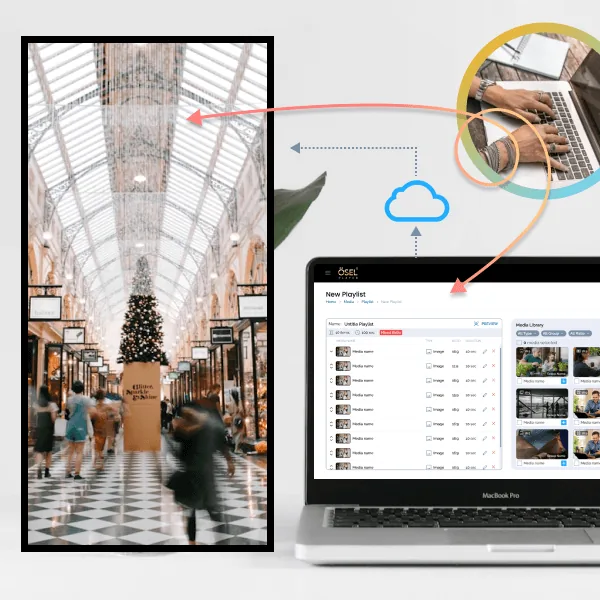
A digital notice board is a screen that shows notices, circulars, timetables and announcements in place of paper pinned to a board. You will also hear it called an electronic notice board, a digital bulletin board or an electronic bulletin board. They all mean the same thing: the notice lives in software, and the screen shows whatever you publish.
With ÖSEL Signage, each screen plays content through a media player and is managed from a web dashboard. You publish a notice once and it appears on one screen, one floor or every campus you run, without anyone walking to a board with a box of drawing pins.
Why switch from a paper notice board
Update a notice from anywhere
Edit or replace a notice from the dashboard and the screen updates live, so nobody reads last week's circular.
Schedule notices ahead
Set the date and time a notice should appear. Exam timetables, event reminders and holiday notices go up exactly when they should.
Approve before it goes up
New notices are saved as drafts and submitted for approval. Only approved content can be scheduled, so nothing unofficial reaches the screen.
Emergency alerts override everything
An emergency schedule replaces whatever is playing with an evacuation, severe weather or health warning on the screens you choose. Regular notices resume afterwards.
Several notices on one screen
Split the screen into zones with a layout or template: notices in one, a clock or weather widget in another, a video in a third.
Know every board is working
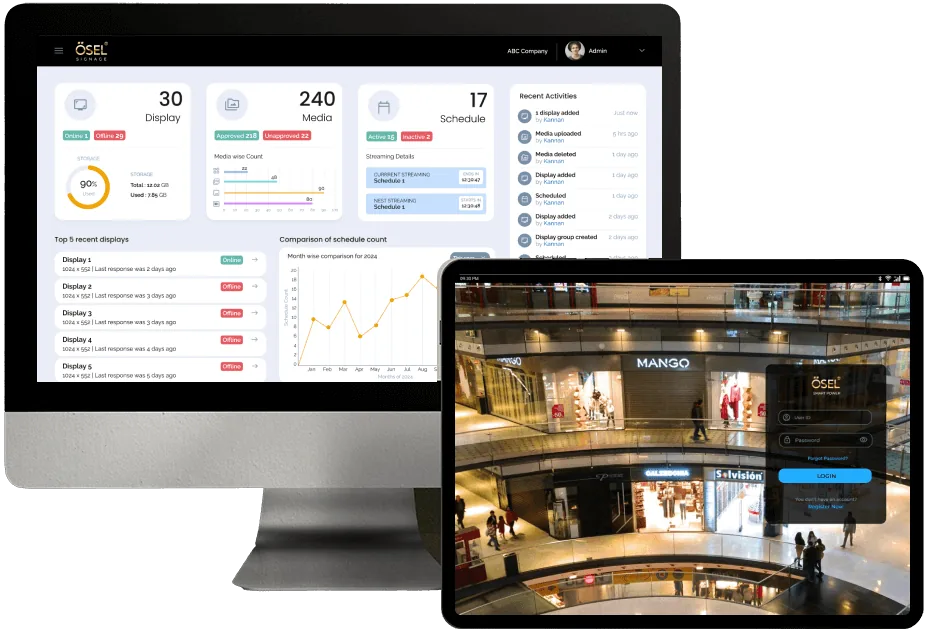
Remote screen status shows which screens are online or offline in real time, and proof of play confirms the notice actually played.
How to set up a digital notice board
- Pick the screens. Use standard displays or active LED displays, in landscape or portrait. Screens play content through a media player such as the ÖSEL G30, G50 or G51. The G50 and G51 rotate output to 0, 90, 180 or 270 degrees.
- Organise them. Add the screens to your account and group them by building, floor or department. Groups can sit under parent groups, so a campus wide notice and a single department notice both have a home.
- Create the notice. Upload images or videos, or start from a template with zones for the notice, a clock and the weather.
- Approve and schedule. Submit the notice for approval, choose the screens or groups, set the dates and publish.
Digital notice board for colleges and schools
Colleges and schools use digital notice boards for circulars, exam timetables, results announcements, admissions dates and events. Build the hierarchy to match the campus: a parent group for the whole institution and child groups for each block or department. A principal's circular can go to every screen, while one department's lab timetable stays on its own floor. For fire drills and evacuations, an emergency schedule takes over every screen at once.
See more on digital signage for schools and colleges.
Digital notice board for offices
In offices, the notice board carries HR announcements, policy updates, safety reminders, visitor welcomes and event news. Teams with more than one site manage every location from one dashboard, and User Activity Reports show who published what. Read more about corporate digital signage.
Other places it replaces the pin board
- Hospitals and clinics: visiting hours, department notices and health awareness messages.
- Factories and warehouses: shift notices and safety messages at the gate and on the floor.
- Government offices: public notices and service updates in waiting halls.
- Residential societies and clubhouses: maintenance notices and upcoming events.
Digital notice board: frequently asked questions

Try ÖSEL Signage free on 5 screens for 30 days
Use your own hardware. Instant access, no commitment.
Start free trial Book a demo